
Introduction
Keplr is a non-custodial wallet that supports Cosmos-based chains such as Provenance Blockchain. After several requests from the community on how to use the Keplr wallet when moving HASH between the Provenance blockchain and Osmosis chain, we’ve written this guide to help alleviate any confusion.
You can import your Figure Markets wallet into Keplr to see and transact with your HASH balance.
The most frequently seen issues were as follows:
- Difficulty sending HASH using Kepler
- Problems moving HASH from Kepler to Figure Markets, or vice versa
- Issues buying HASH using Osmosis and Kepler
Below we have instructions on how to view your HASH balances on Keplr Wallet (0), and how to move your HASH in 3 different ways—directly within the Keplr wallet browser extension (1), on Osmosis (2), and finally using a third party bridging service—Skip Go (3).
0. Keplr Wallet Setup & Configuration to View HASH Balances
Option 1: You’ve purchased HASH on Figure Markets and want to transact outside of the Figure Markets App
- Download the Keplr wallet — it comes as either a browser extension or mobile app
- Go into your Figure Markets mobile app
- Upon logging in, hit the elipsis/3 dots in the upper right hand corner of the screen
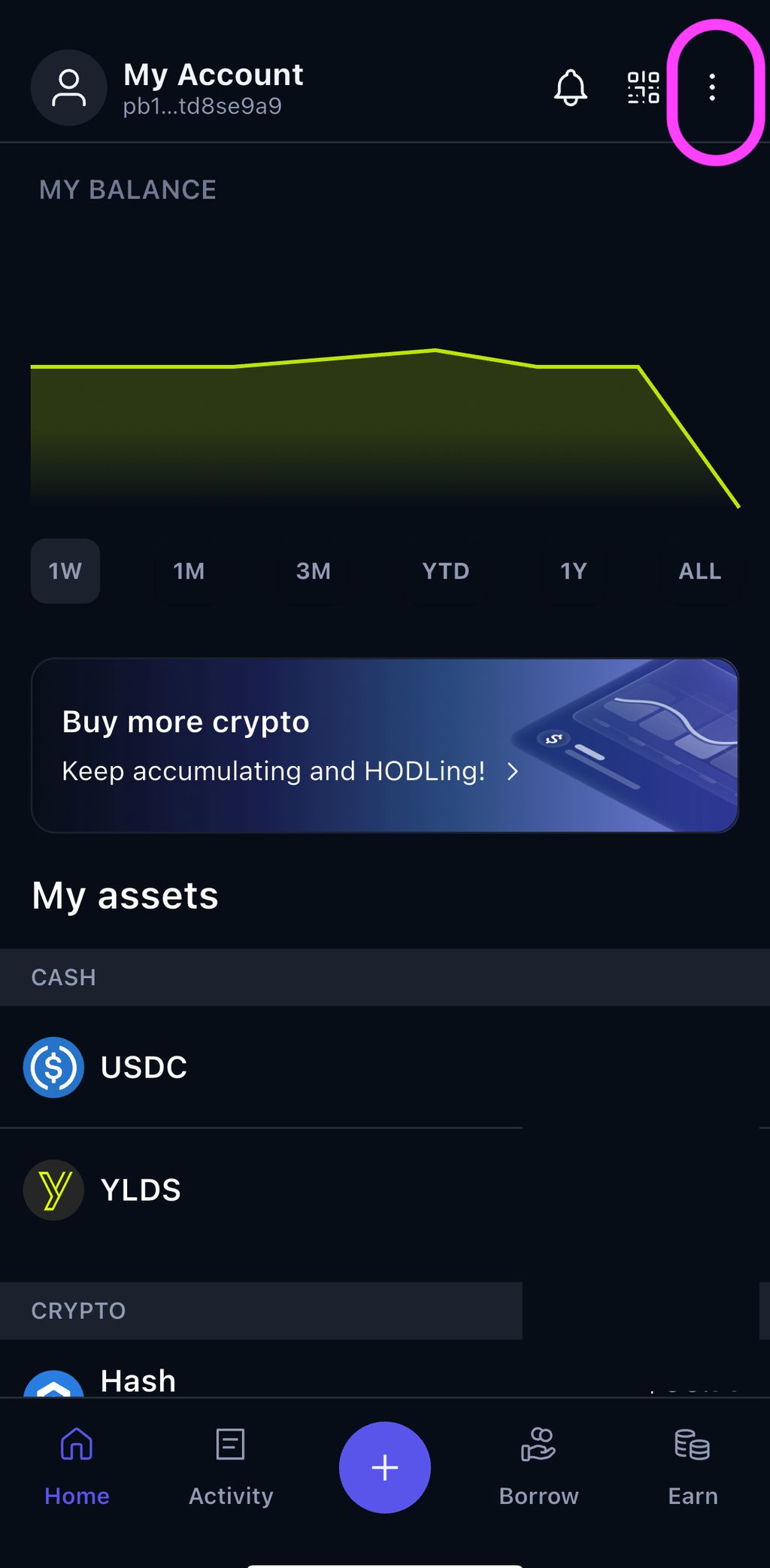
- Next, go into “Manage accounts”
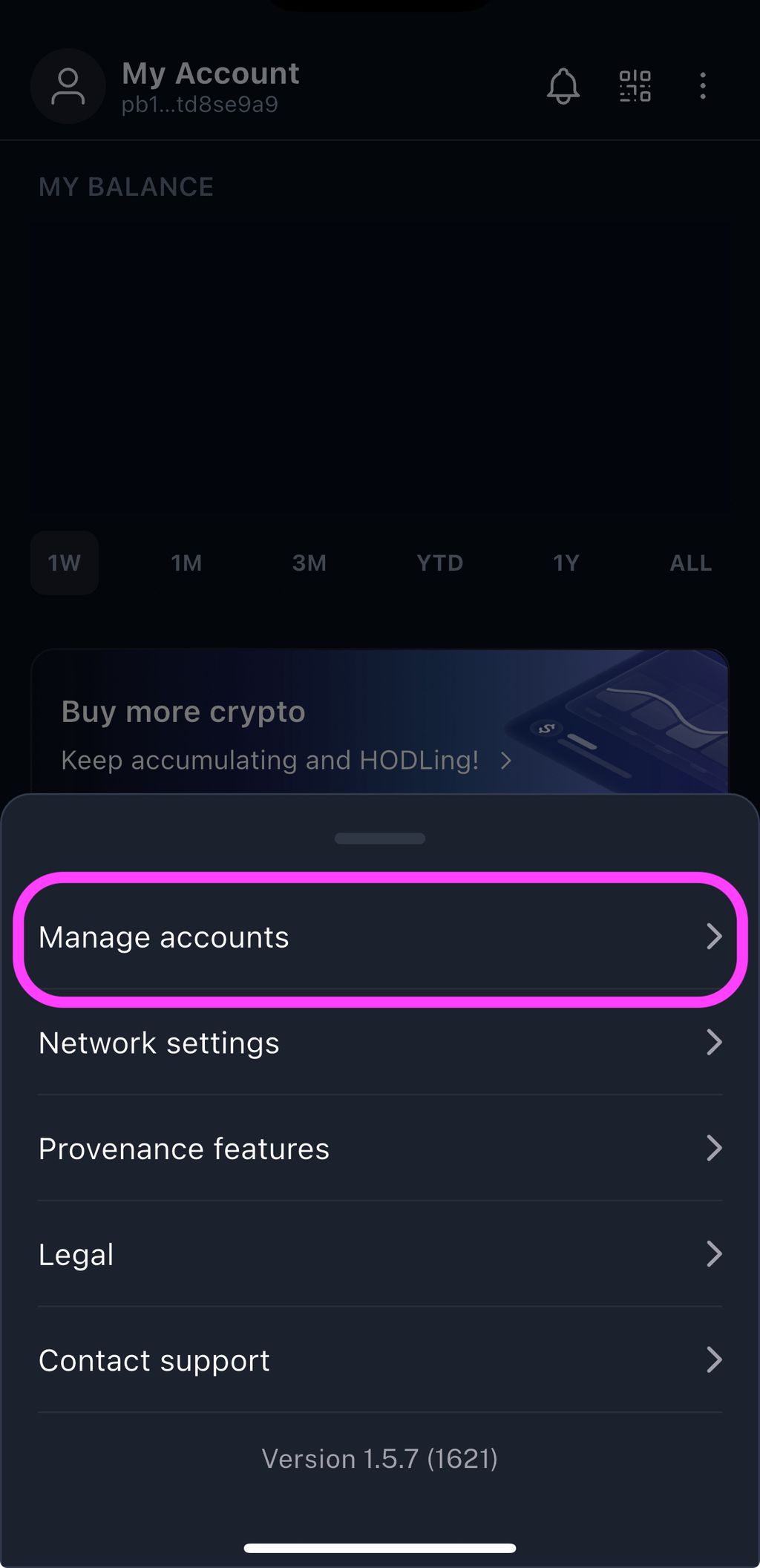
- Select the account you wish to import into Keplr wallet
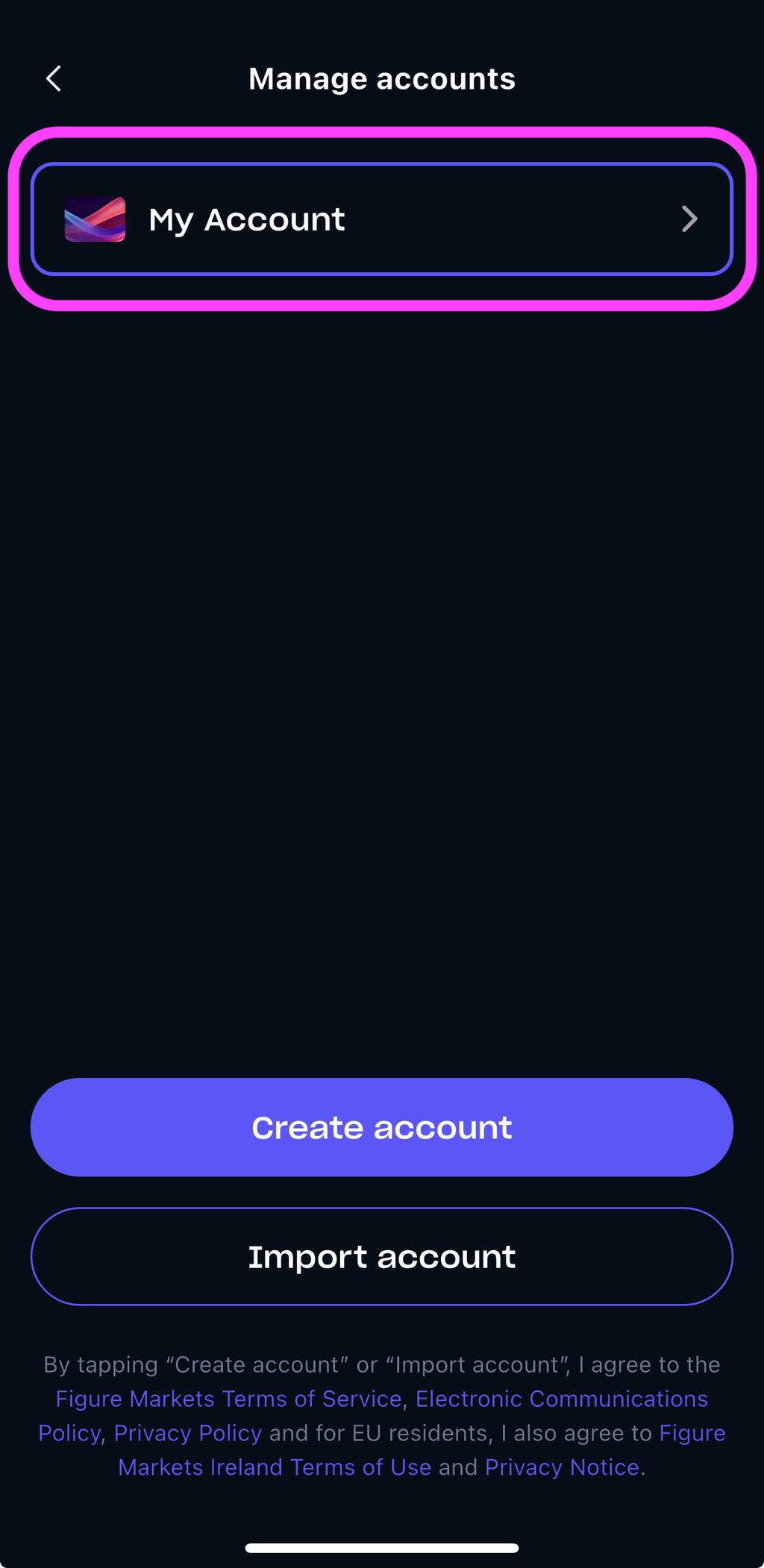
- Next, select “View recovery phrase”
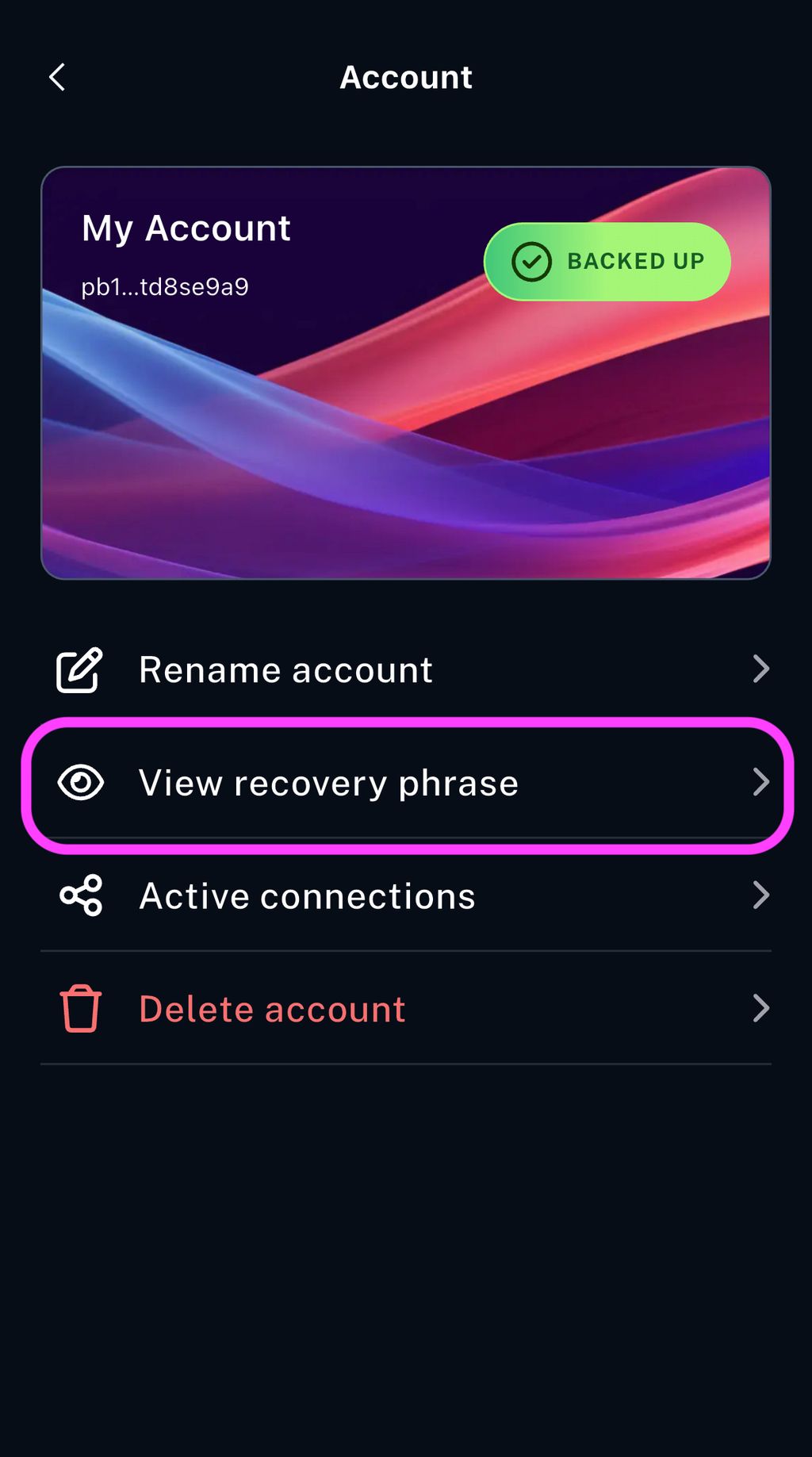
- You will then see 24 words—this is your recovery phrase! Copy these 24 words
- Now you are ready to import your FM wallet into Keplr!
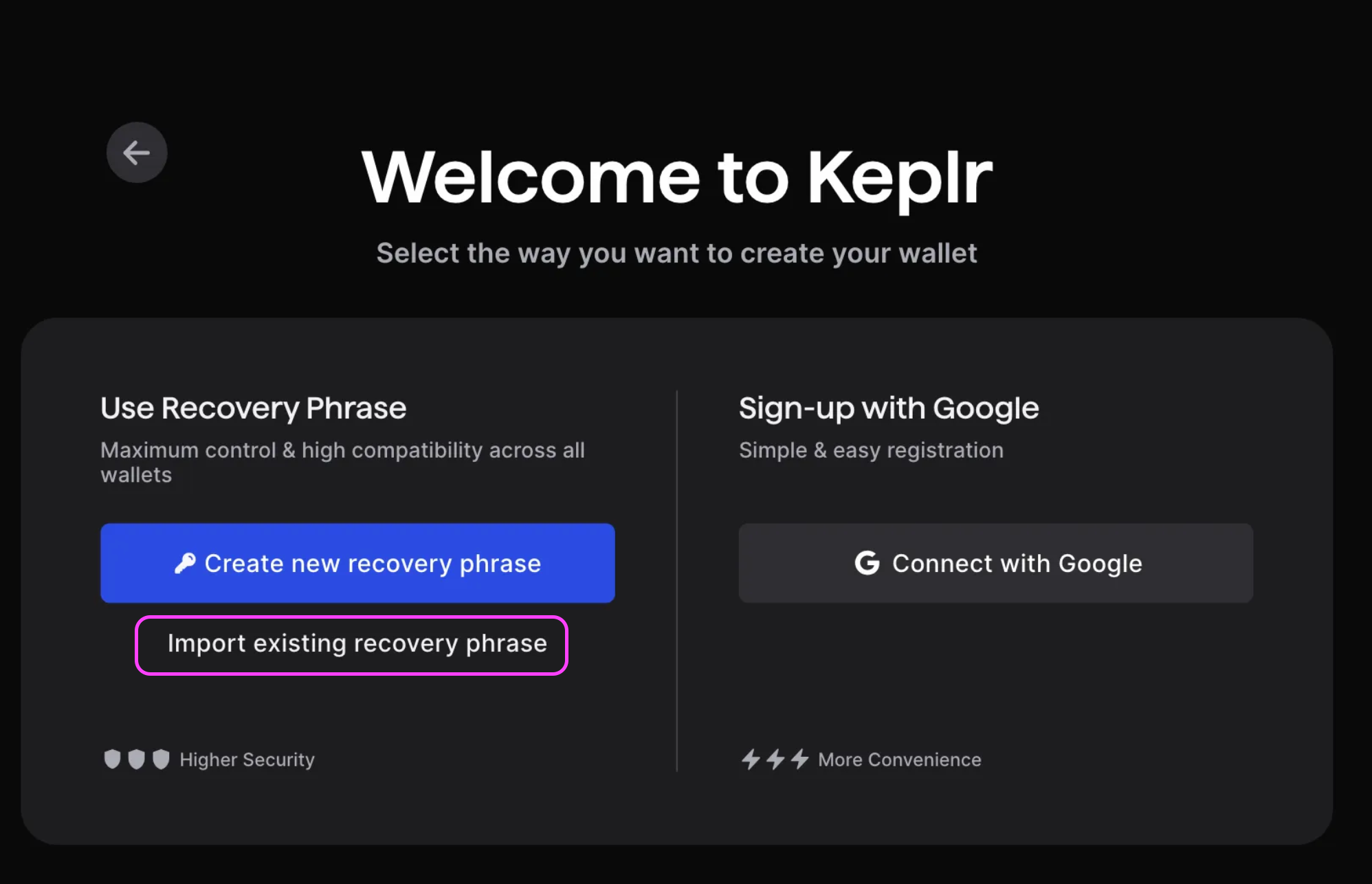
- Go back to Keplr wallet’s browser extension or mobile app and choose “Import existing recovery phrase”
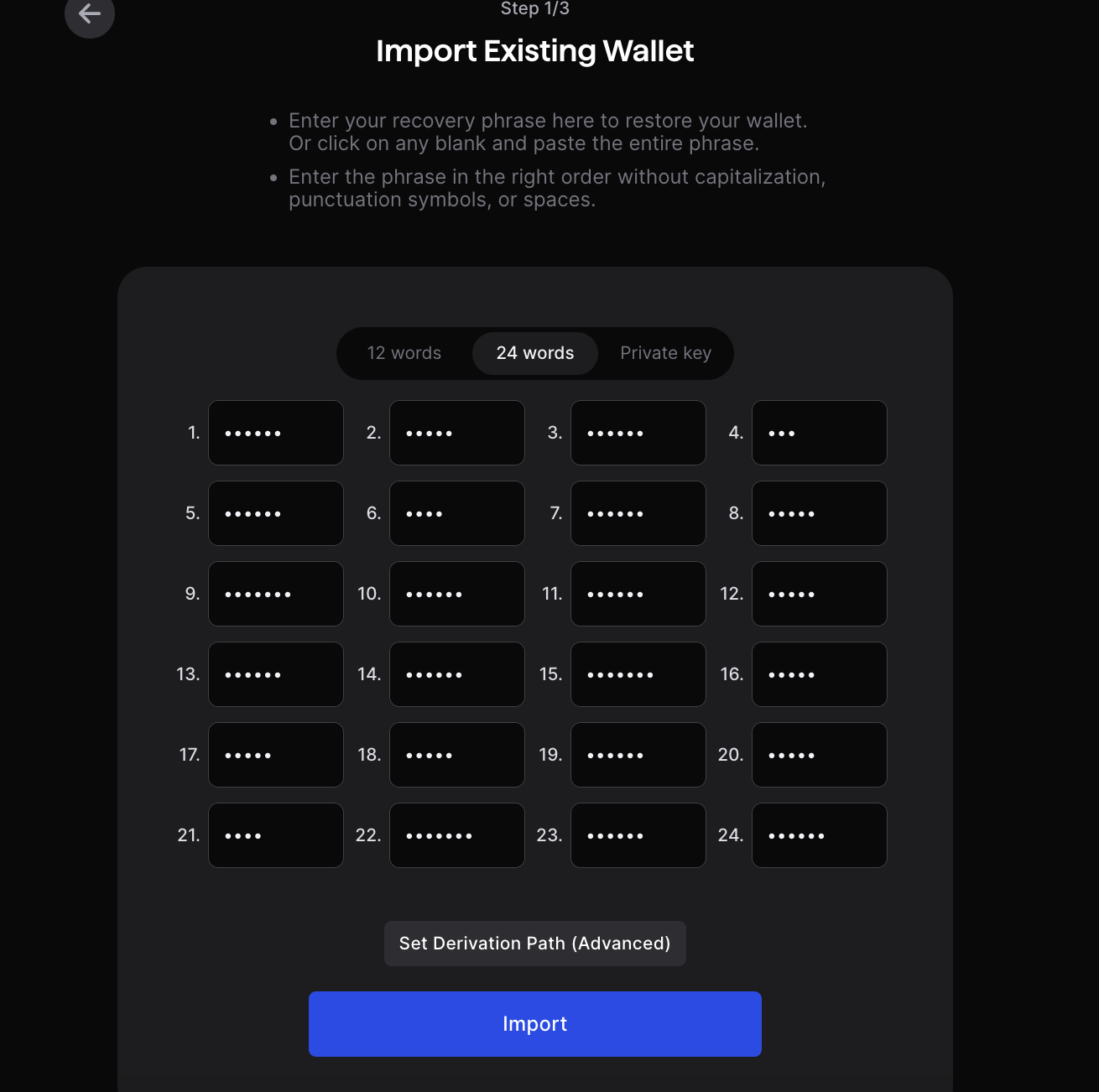
- Paste or type your 24-word recovery phrase that was obtained from the Figure Markets app. Hit “Import.”
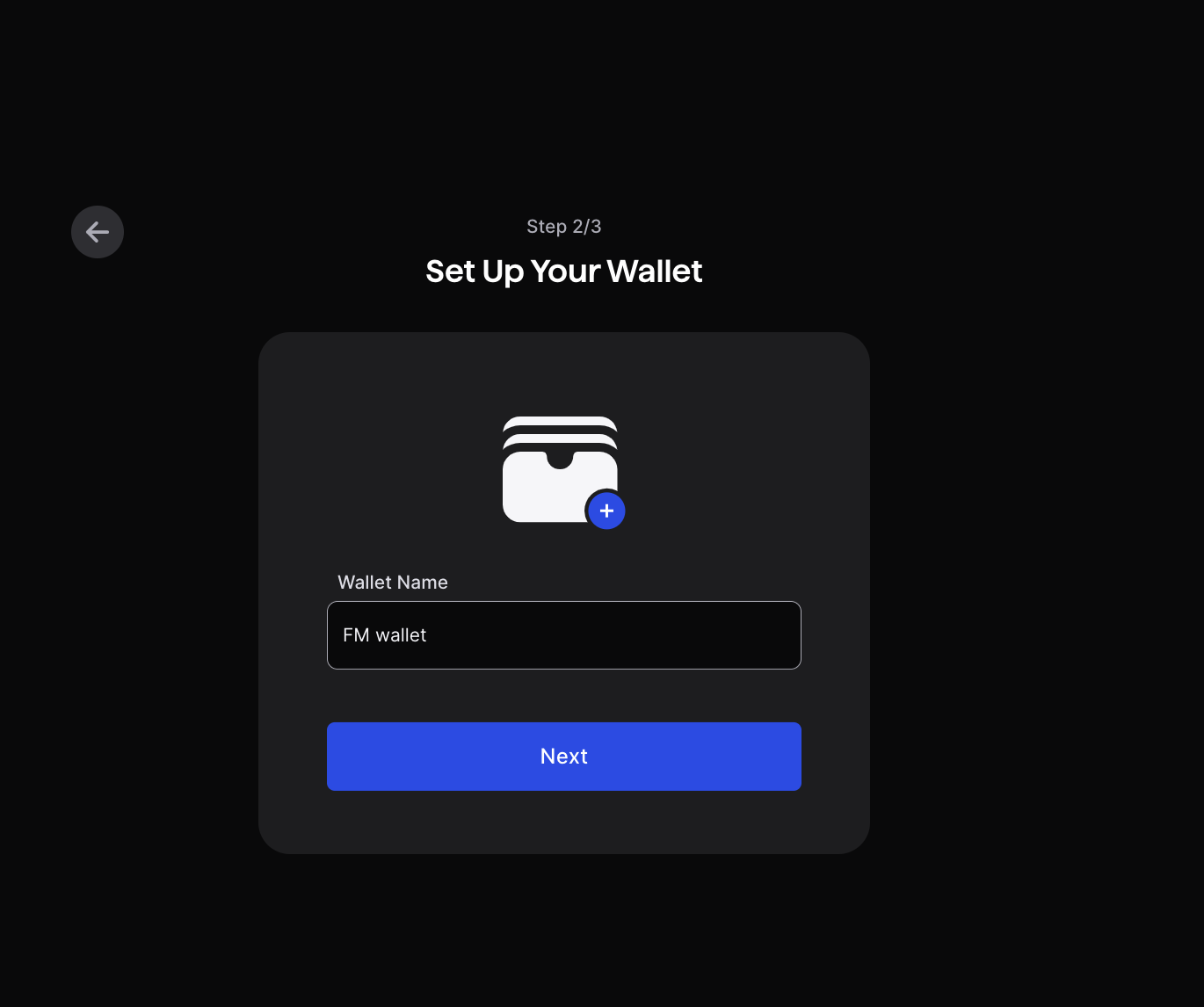
- Name your wallet, then hit “Next”
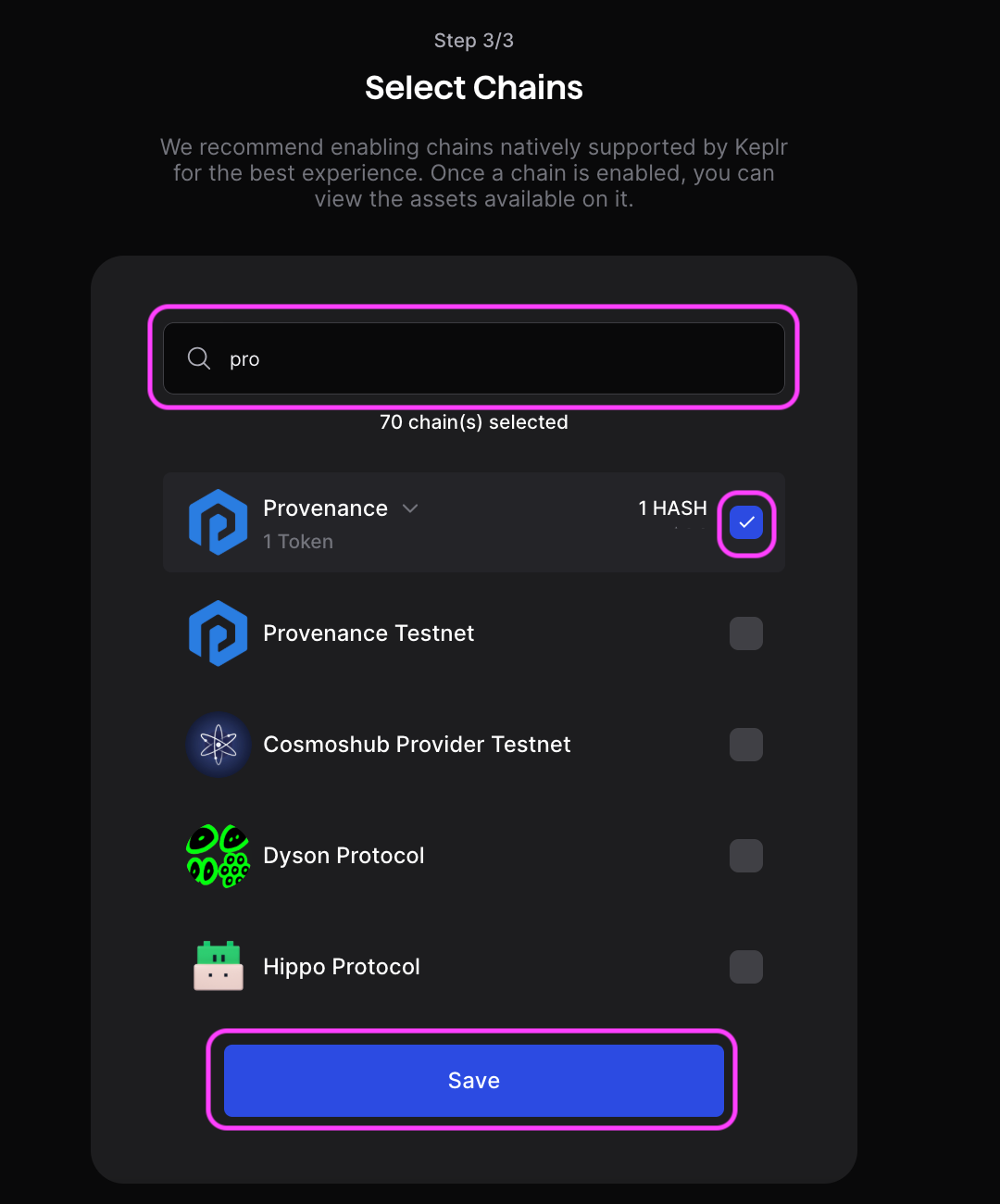
- Final step! Make sure you manually add “Provenance” chain to the wallet in order to see your balances from the Figure Markets wallet
- Great job! You can now use your Keplr wallet to bridge over to Osmosis, and to connect with Provenance Explorer to delegate your HASH, and vote on governance.
Option 2: Starting a brand new wallet on Keplr
- Download the Keplr wallet — it comes as either a browser extension or mobile app
- Choose either to 1) use a recovery phrase or 2) Connect with Google to create your wallet.
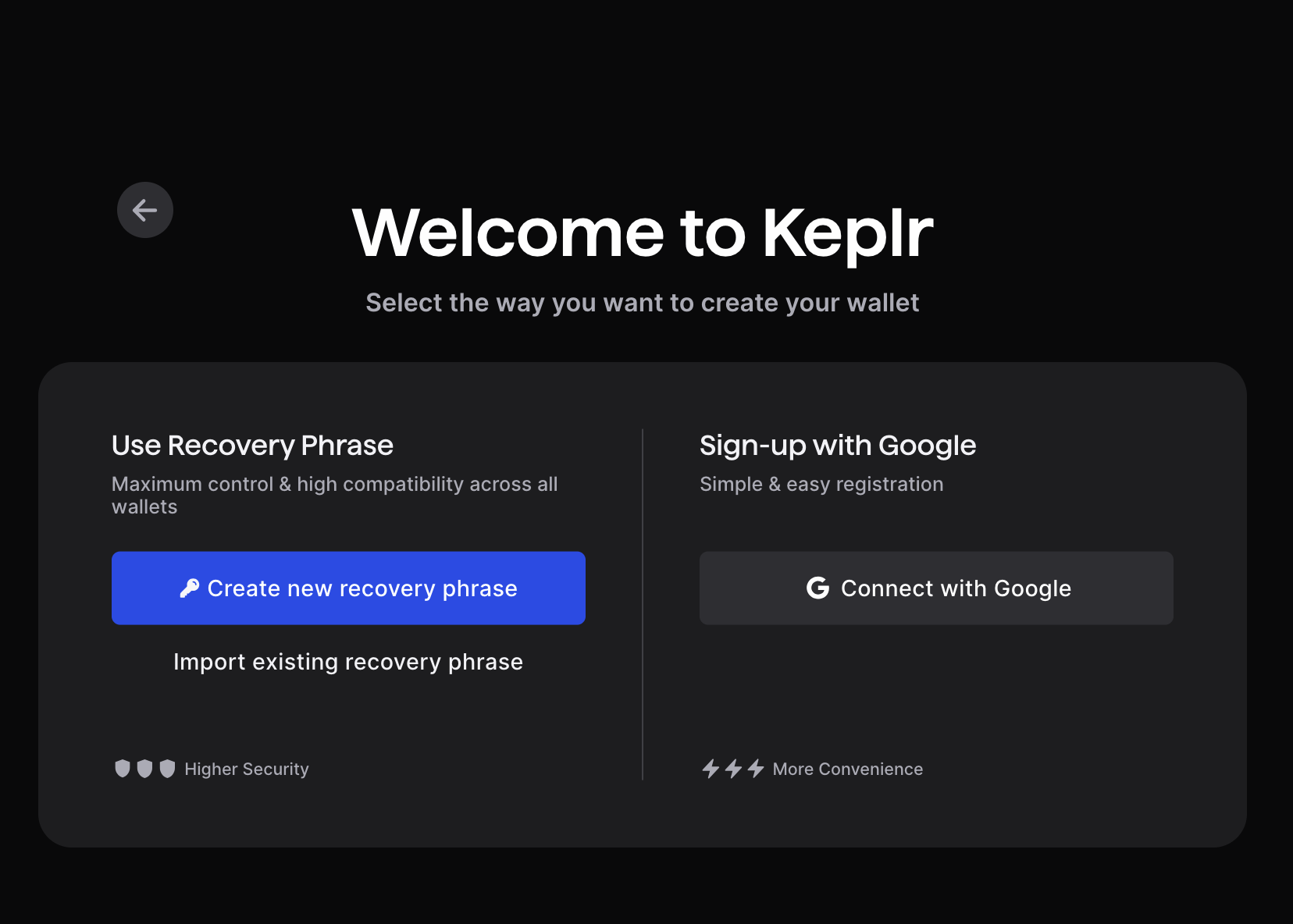
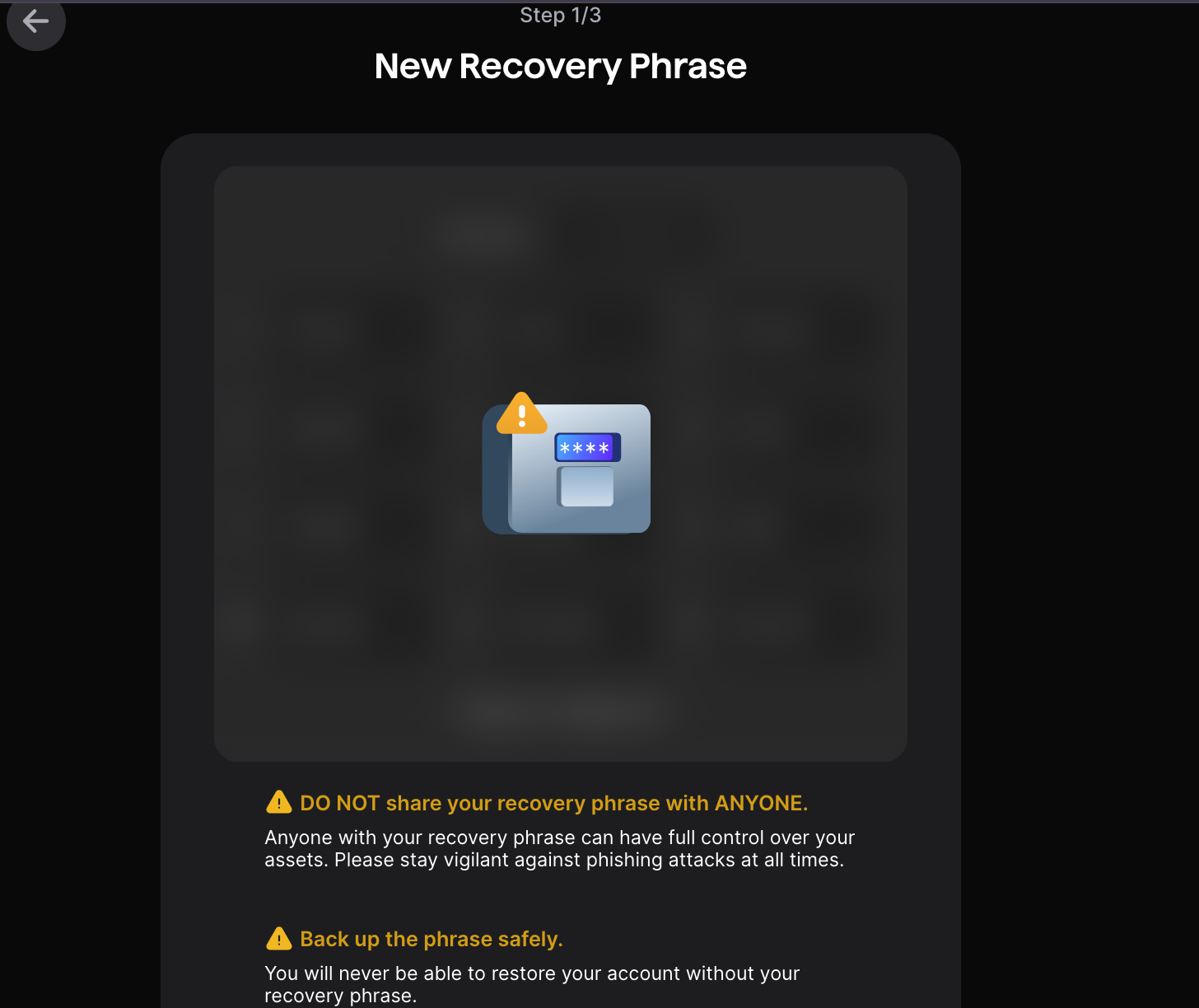
- If using a recovery phrase, save your recovery phrase safely
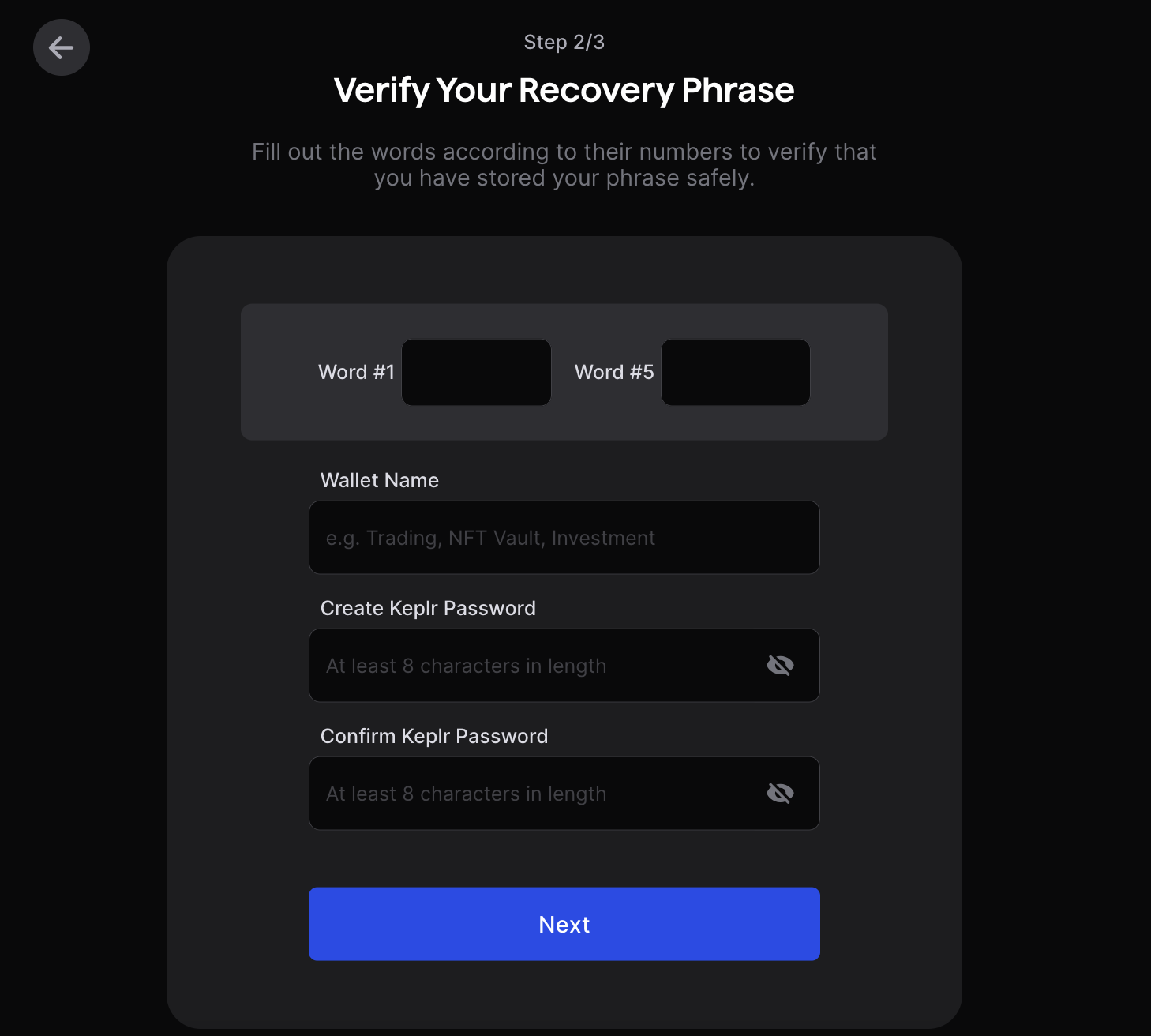
- Verify your recovery phrase in step 2
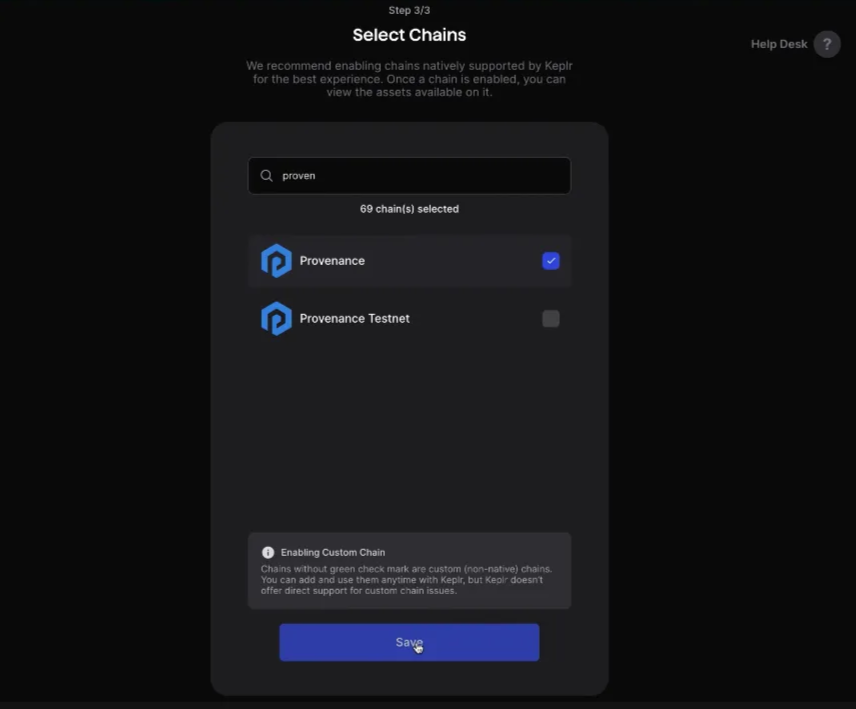
- In Step 3, enable Provenance manually as it is not in default chain list
- (For browser extension users) Select correct derivation path (44/505) for Provenance compatibility and consistency
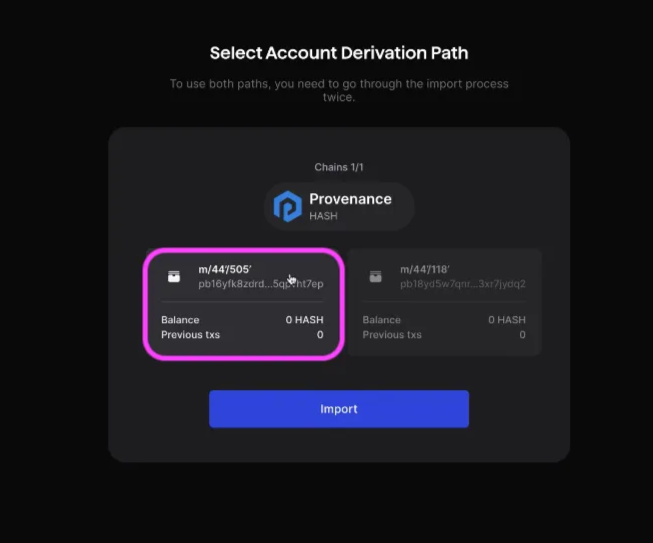
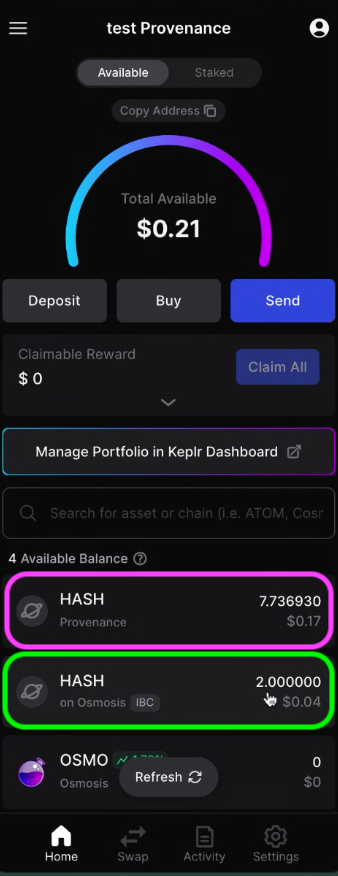
How to View Your HASH Balance on Keplr Wallet
- When checking HASH balances on Keplr wallet browser extension, note the distinction between:
- HASH on the Provenance blockchain (native - highlighted in pink)
- If you buy HASH on Figure Markets, it will be on the Provenance Blockchain
- HASH on the Osmosis network (bridged - highlighted in green)
- If you buy HASH on Osmosis, it will be on the Osmosis chain
Bridging HASH - 3 different ways
Option 1. How to bridge HASH to/from Osmosis within Keplr wallet
- You can bridge HASH directly in the Keplr Wallet using the Cross-Chain Send (browser extension), which is the same as the IBC Send (mobile app), both located to the left of the “Send” option page
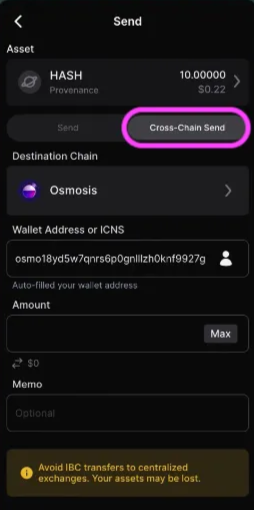
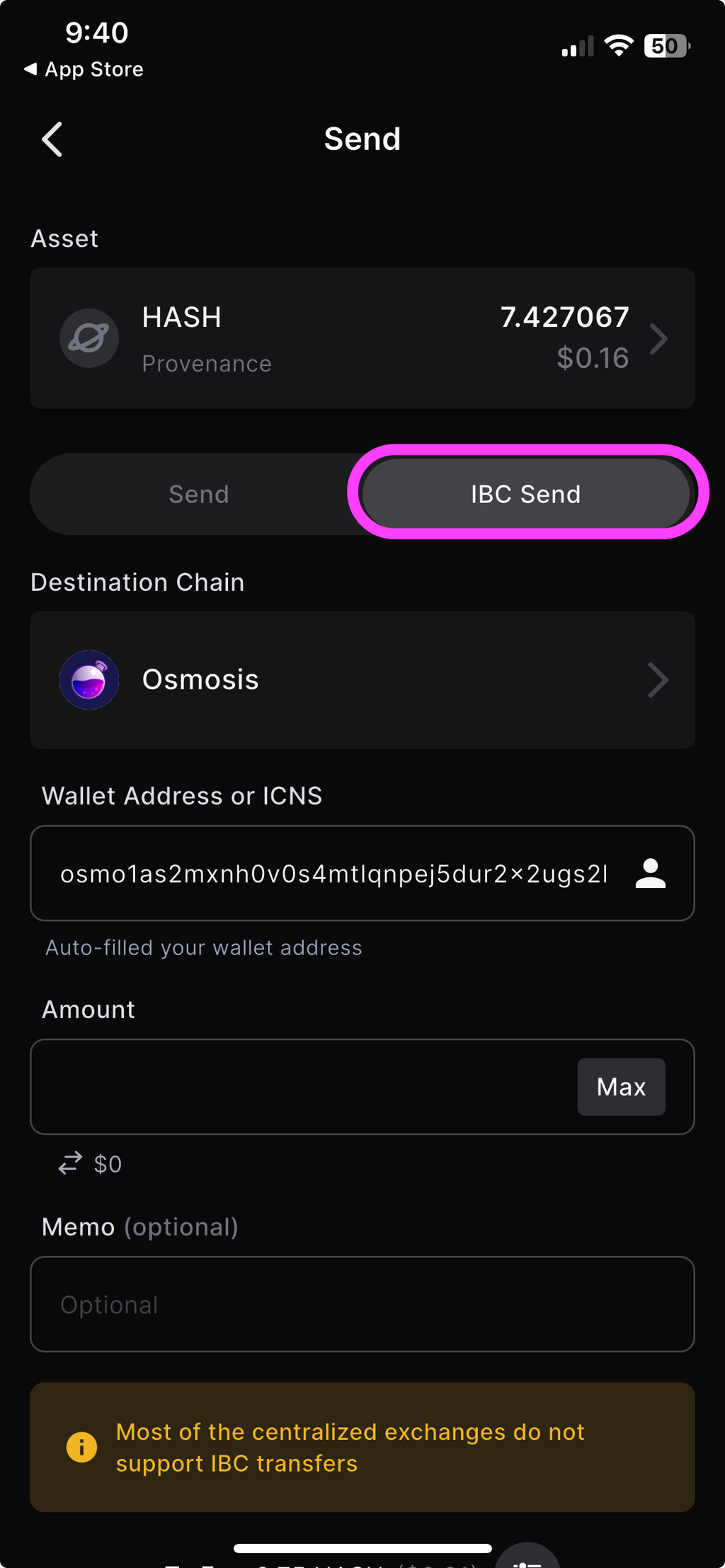
- To send HASH on the Osmosis chain to another wallet (such as your Figure Markets Wallet), paste your Figure Markets wallet address in the “Wallet Address” input
- If sending HASH that is on the Osmosis chain to your Figure Markets Wallet, make sure the ending Destination Chain for your HASH is on the Provenance blockchain, not Osmosis
Option 2. How to Bridge HASH to/from Osmosis on the Osmosis website
- On Osmosis, select Deposit or Withdraw, and select the corresponding networks
- After entering the amount of HASH you’d like to transfer, hit “Review Withdraw” and approve the transaction in Keplr wallet (or whichever IBC wallet your HASH is on)
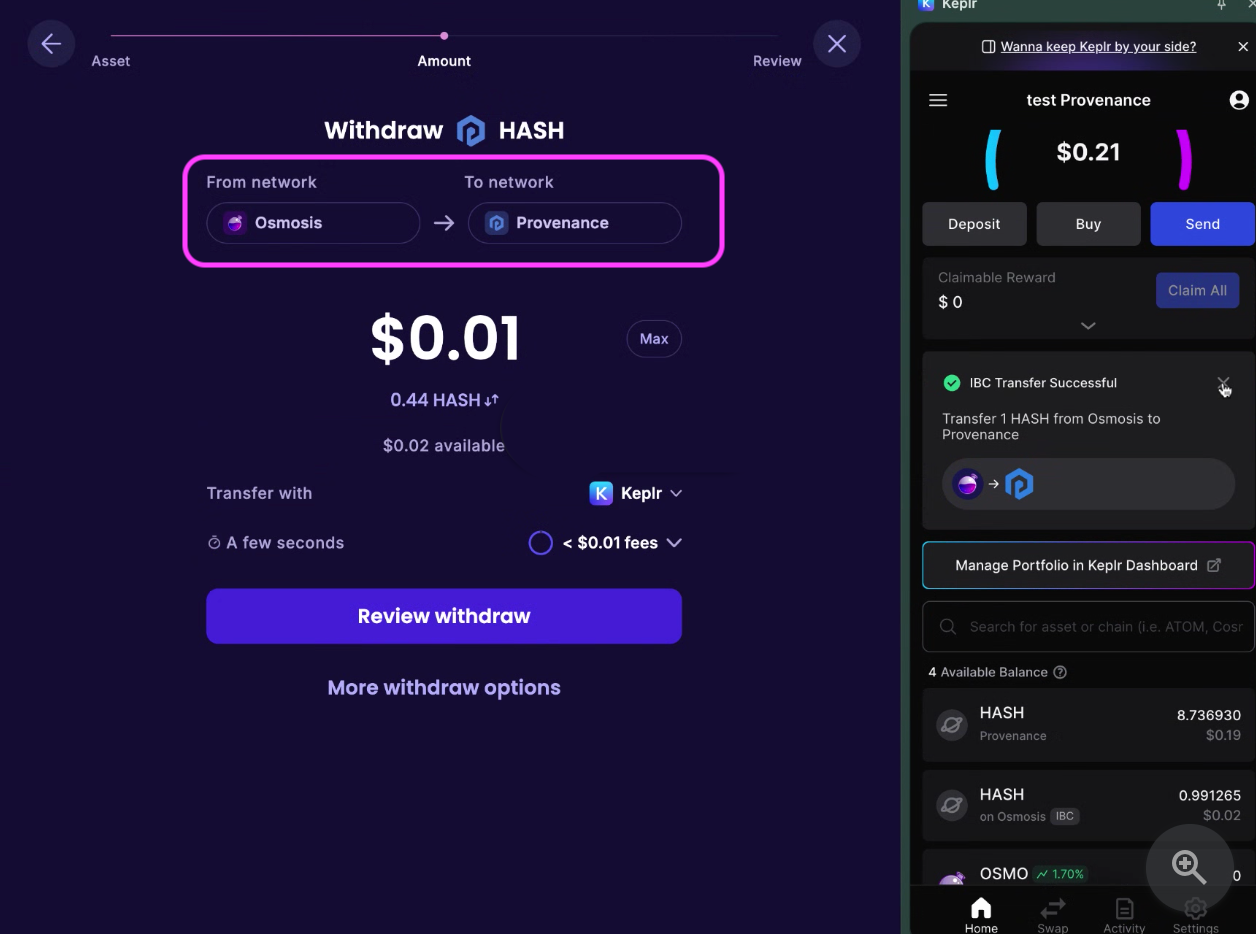
- The transaction should take several minutes, and your wallet should reflect the balances shortly.
Option 3. Using Skip Go to transfer HASH
- Skip Go is a bridging platform that allows you to send HASH between different blockchains and wallet addresses
- Connect your wallet and enter the amount of HASH you want to transfer in the top box—if you are transferring from Osmosis to Provenance Blockchain, ensure that you have OSMO tokens to cover the transaction fees
- Ensure that your destination wallet address (underlined in orange below) and select the right chain—either Provenance or Osmosis
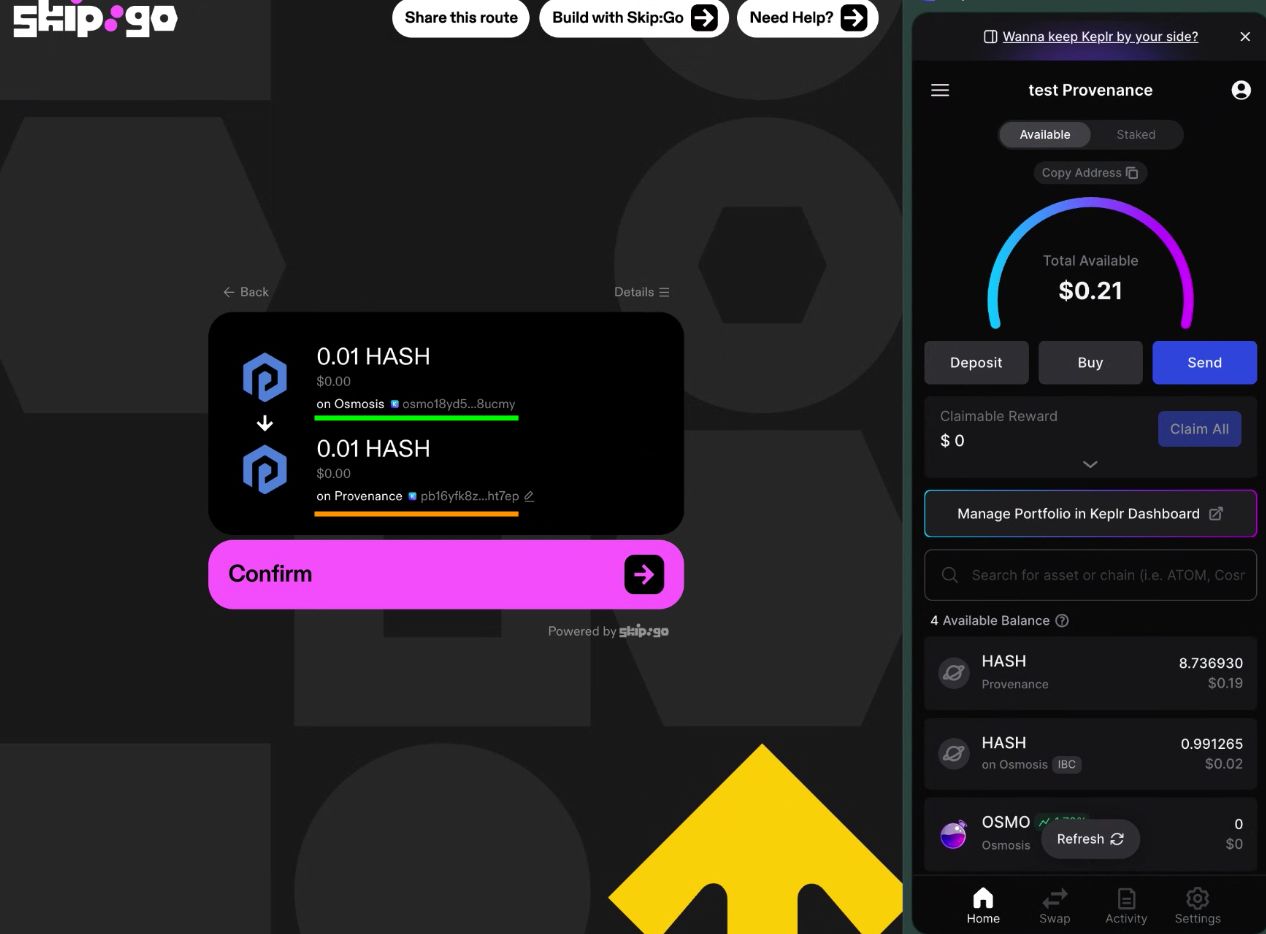
- Confirm the transaction in the Keplr wallet extension and wait for the transaction to complete and reflect in the wallet interface.
More troubleshooting recommendations:
- Clear browser cache if experiencing connection issues
- Verify transaction details in wallet before signing
- Use trusted dApps (Skip Go, Osmosis) for transfers
- Disable unused chains in Keplr to improve performance
If you have any further questions, please ask on our Telegram or Discord!